Day 3 Task: Basic Linux Commands

This is #90DaysofDevops challenge under the guidance of Shubham Londhe sir.
Day 3 TASK
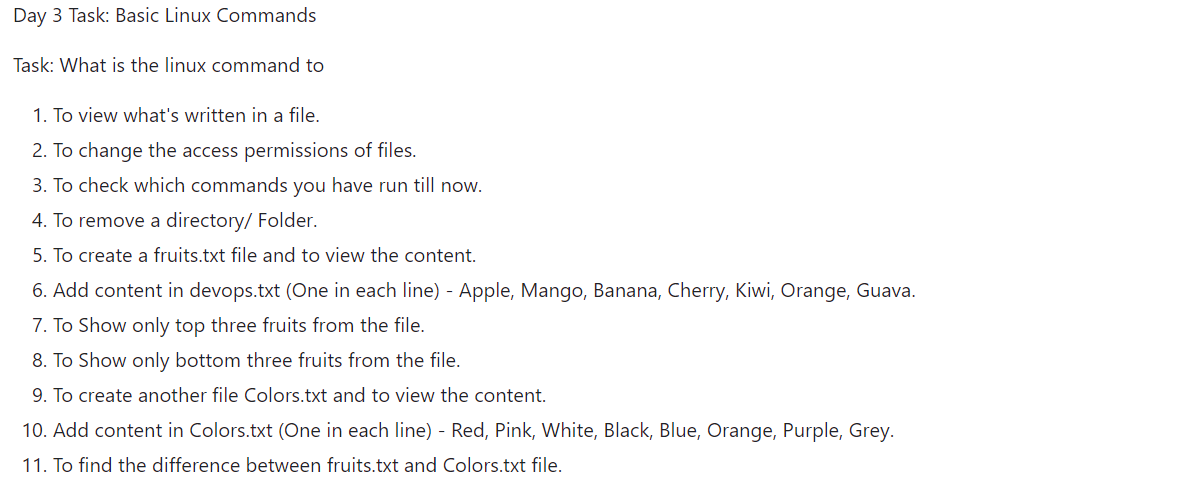
Are you ready to dive into the world of Linux commands? Let's explore some fundamental commands that every Linux user should know.
Viewing the Contents of a File: To see what's written in a file, you can use the
catcommand. For example:cat filename.txt
Changing File Access Permissions: To modify the access permissions of files, you can use the
chmodcommand. For instance:chmod 700 filename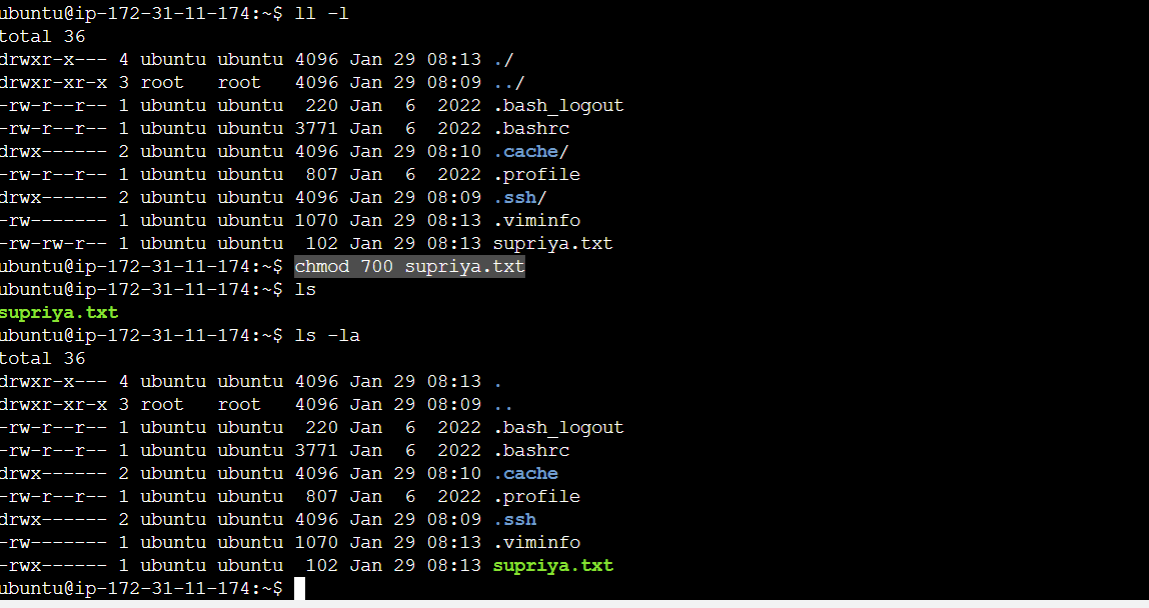
The first digit (7) indicates that the owner of the file (
supriya.txt) has full permissions, meaning they can read, write, and execute the file.The second digit (0) indicates that the group owner of the file does not have any permissions.
The third digit (0) indicates that other users (not the owner or in the group) also do not have any permissions.
So, in simple terms, the command
chmod 700 supriya.txtgrants the owner of the filesupriya.txtfull control over the file, while denying any access to the group owner and other users.This ensures that only the owner has the ability to read from, write to, and execute the
supriya.txtfile.
Checking Command History: To review the commands you've executed previously, simply type:
history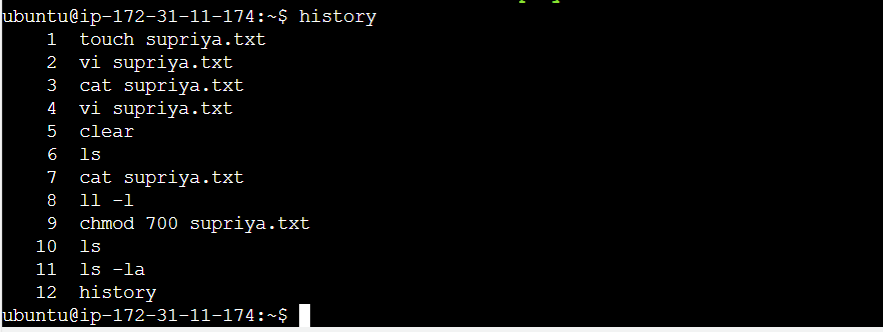
Removing a Directory/Folder: To delete a directory, use the
rmdircommand. Be cautious, as it removes empty directories.rmdir directory_name
Creating and Viewing a File: To create a file named fruits.txt and view its content, execute:
 touch fruits.txt
 cat fruits.txt
Adding Content to a File: To add content to the devops.txt file, one item per line, you can use a text editor like
nanoor simply append withecho:echo -e "Apple\nMango\nBanana\nCherry\nKiwi\nOrange\nGuava" > devops.txt
Displaying Top Three Fruits: To display only the top three fruits from the file, you can use the
headcommand:head -n 3 devops.txt
Showing Bottom Three Fruits: To show only the bottom three fruits from the file, utilize the
tailcommand:tail -n 3 devops.txt
Creating and Viewing Another File: Create a file named Colors.txt and view its content:
 touch Colors.txt
 cat Colors.txt
Adding Content to Colors.txt: Add colors to the Colors.txt file, one per line:
echo -e "Red\nPink\nWhite\nBlack\nBlue\nOrange\nPurple\nGrey" > Colors.txt
Finding Differences Between Files: To identify the differences between fruits.txt and Colors.txt, use the
diffcommand:diff fruits.txt Colors.txt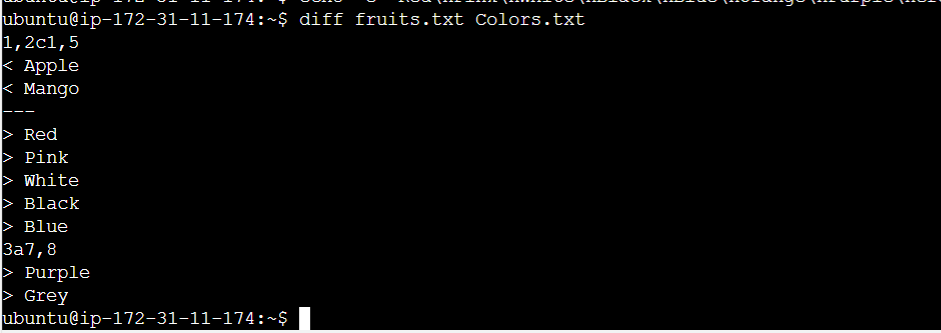
- These Linux commands form the foundation of your journey into the world of Linux.
If you found this post useful, please consider giving it a follow and tapping the clap 👏 button to let us know! Your support means a lot.
Thank you for taking the time to read! 💚